
Installation
Edit on GitHubBefore you use AI-related tools, consult your legal department.
This page is the single installation reference for the AI Dev SDK. It covers every AI tool and every project state — a fresh clone, an installed project, or a running one. All other AI Dev SDK pages link here instead of repeating installation steps.
Prerequisites
- One of these coding agents:
- Claude Code with a Claude account — a Pro or Max plan, or an API key. See Set up with Claude Code.
- GitHub Copilot CLI with a GitHub Copilot subscription. See Set up with GitHub Copilot.
- Cursor, Windsurf, OpenCode, Codex CLI, or GitHub Copilot in an IDE. See Set up with another assistant.
- Your project uses
docker/sdkversion 1.71.0 or later. Make sure your development environment is up to date before you install the AiDev module.
Set up with Claude Code
Step 1: Install the plugin
In your terminal, go to your project’s root directory and run claude. On the first launch, Claude Code asks you to log in and to trust the project folder — accept both. You are now at the Claude Code prompt; commands starting with / are typed there, one at a time:
/plugin marketplace add spryker-sdk/ai-dev
/plugin install spryker-ai-dev-sdk@spryker-plugins-official
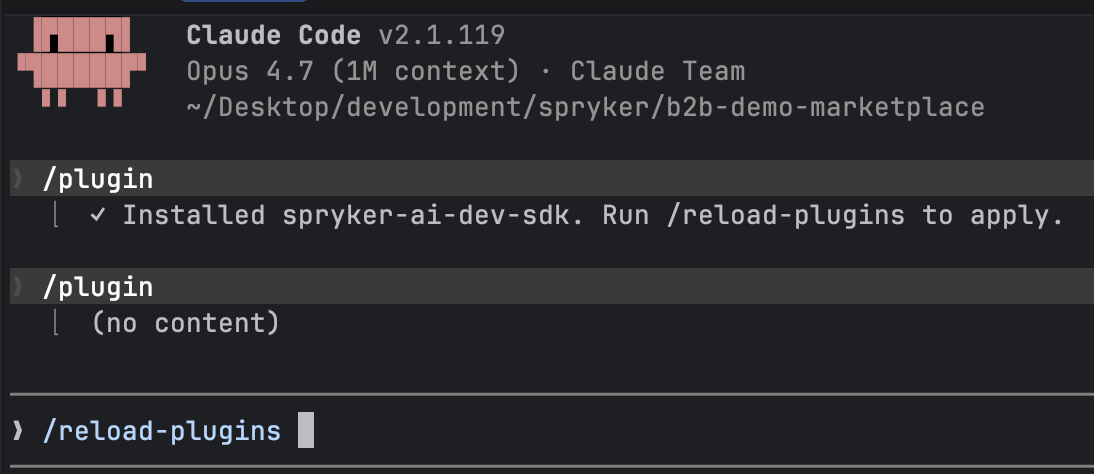
/reload-plugins
The /reload-plugins command activates the plugin’s skills and agents without restarting the session. Alternatively, restart the Claude Code session.
This step works regardless of your project’s state — the plugin installs into Claude Code itself, not into the project.
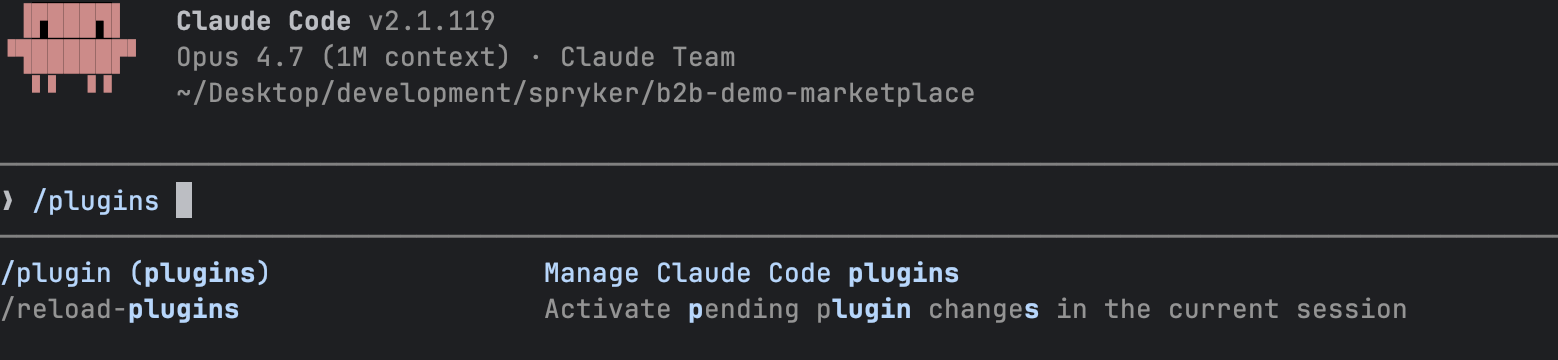
You can also do both steps through the interactive /plugin menu.
The plugin commands:
The Marketplaces tab:
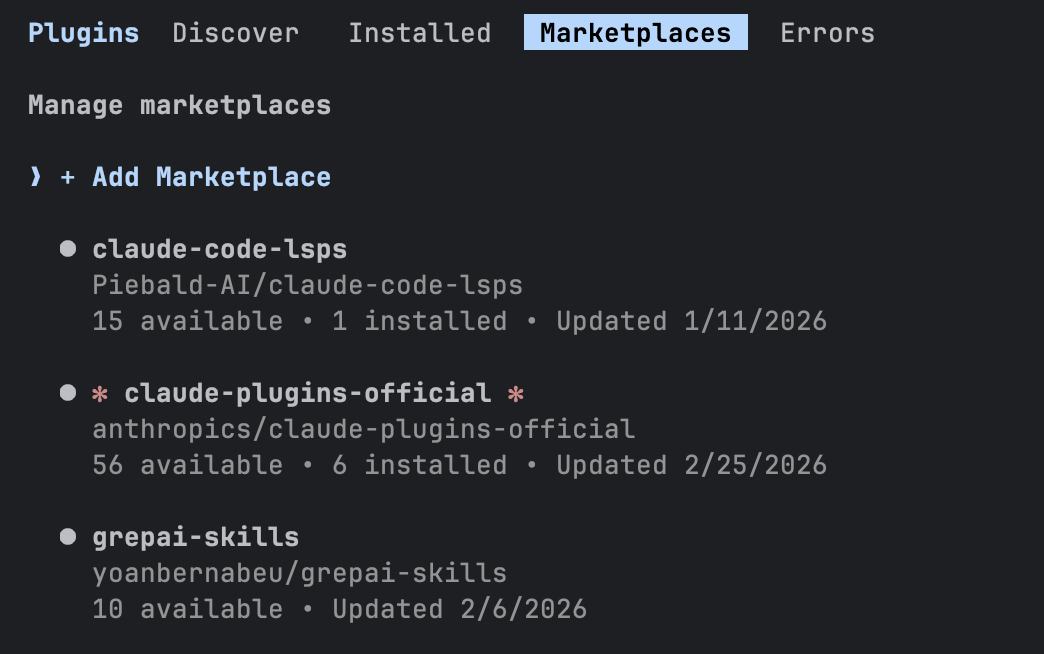
Adding the Spryker marketplace:
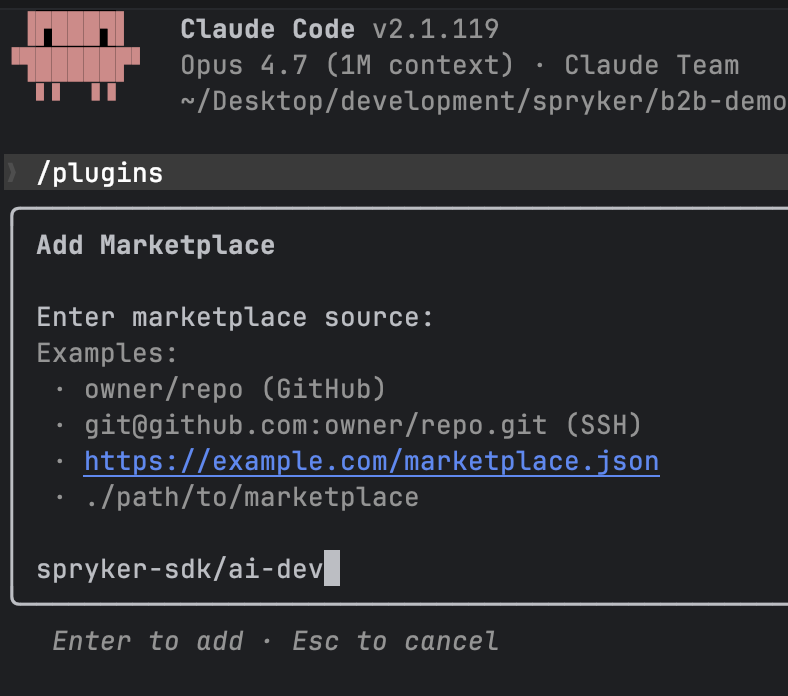
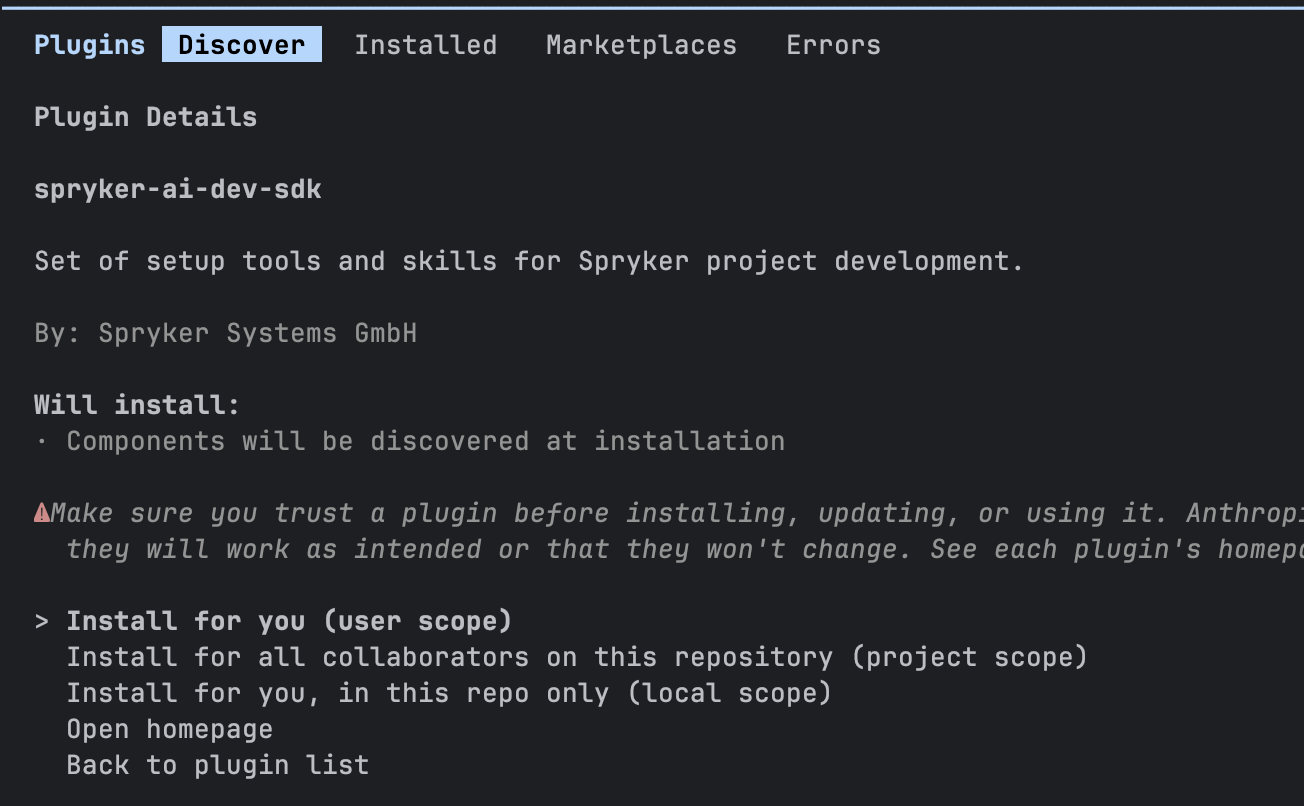
The plugin in the Discover tab:
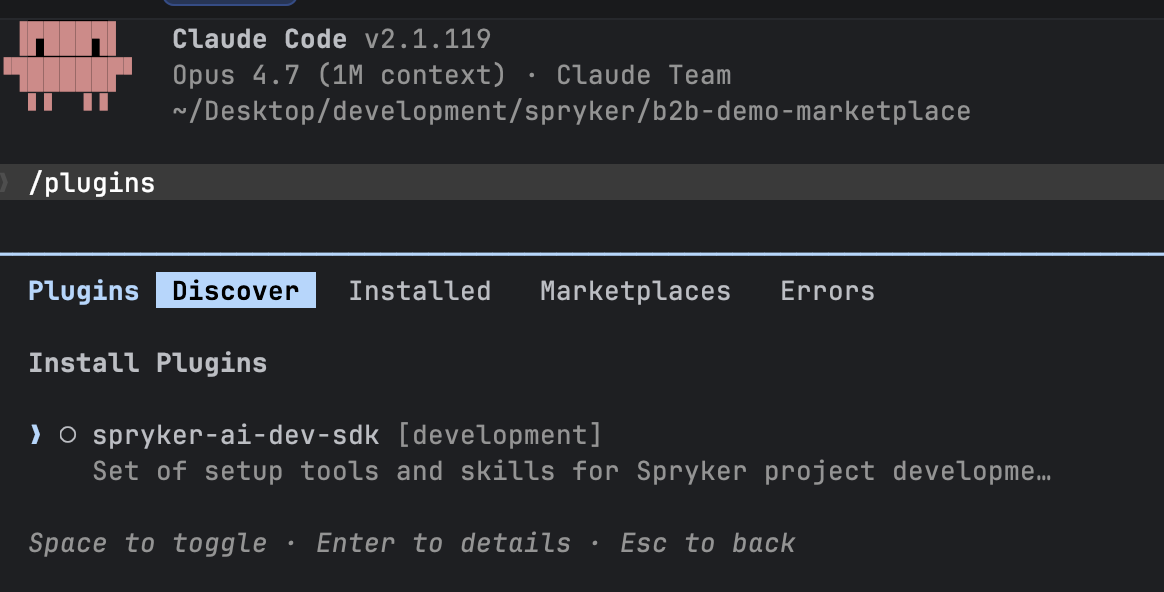
Plugin details and installation scope:
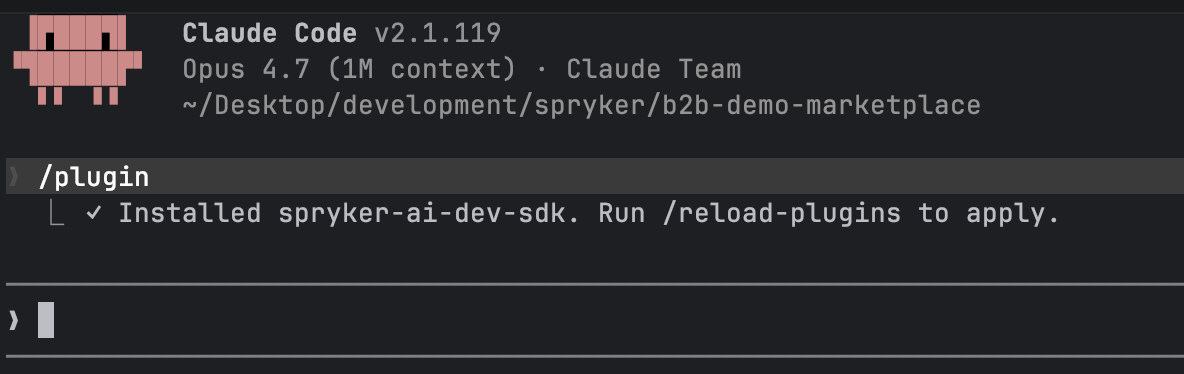
Installation confirmed:
Applying the plugin:
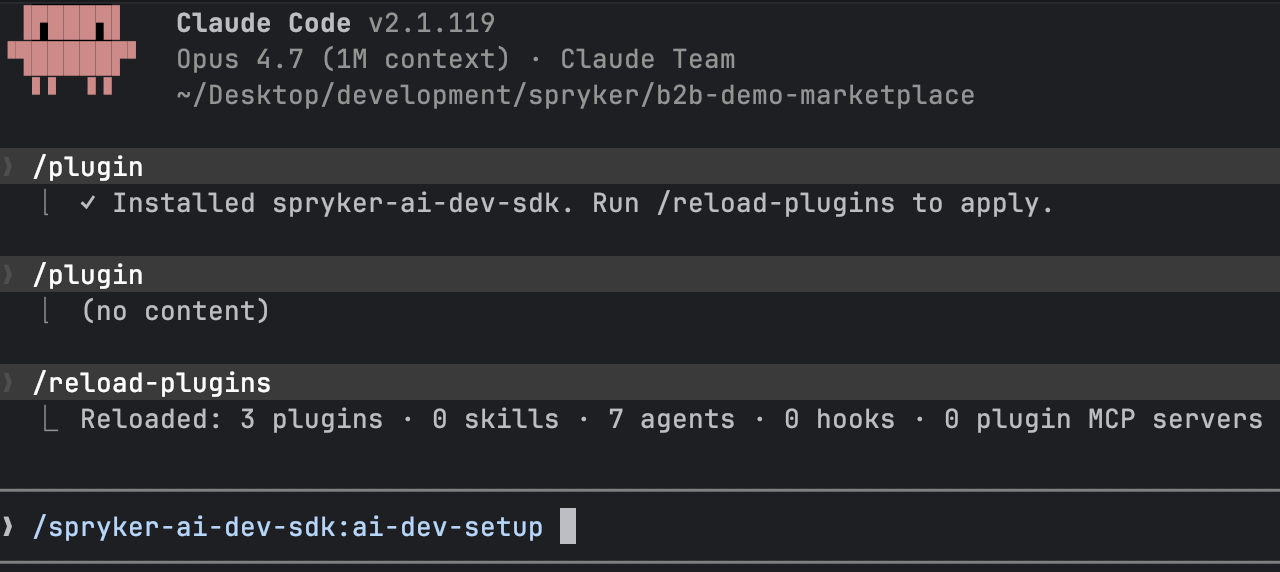
At the Claude Code prompt, type the following:
/spryker
The command list filters down to the Spryker skills, such as /spryker-ai-dev-sdk:ai-dev-setup. If nothing appears, quit Claude Code and run claude again.
All skills and agents — packaged, Spryker-aware workflows for building features, fixing bugs, and upgrading — are now available. This already covers work that does not touch a specific project; for work on your codebase and data, complete step 2 first.
Step 2: Add your project’s context
This step generates the Spryker coding rules (.claude/rules/) and the project context file (CLAUDE.md), and registers the MCP server — live access to your transfers, module interfaces, and OMS configuration.
Before you run it:
- Your project’s Docker environment must be running:
docker/sdk up, typed in a separate terminal, not at the Claude Code prompt. The skill runs Composer and console commands inside the containers. - On a fresh, un-booted clone, skip this step and return after the first boot — for example, after the Project Starter Wizard has set up and booted the project.
At the Claude Code prompt, run:
/spryker-ai-dev-sdk:ai-dev-setup
The skill checks your project’s state and handles every case:
- If the
spryker-sdk/ai-devmodule is not in your project yet, it installs it, wires up the console commands, registers the MCP server with Claude Code, and generates.claude/rules/andCLAUDE.md. The first run takes a few minutes while Composer runs, and Claude Code asks for permission before each command — see Permission requests. - If the module is already installed, it skips the installation and only refreshes the generated files, asking before it changes any existing file.
It is safe to re-run at any time.
The skill finishes with a report of what it changed, and of anything it suggests you set up next:
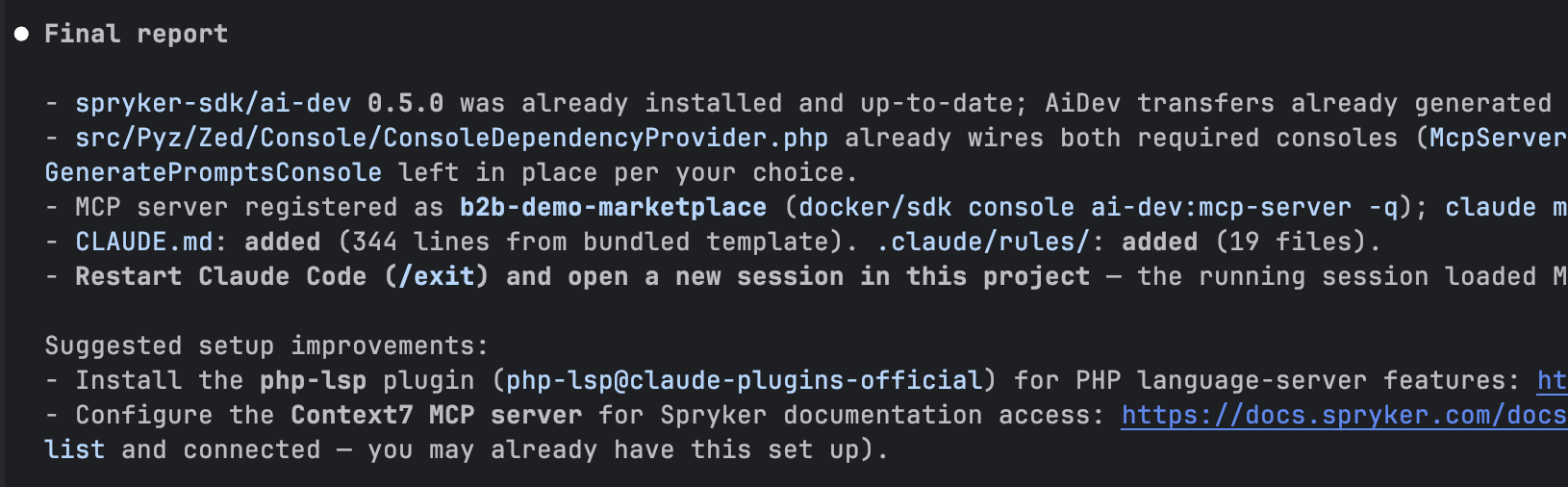
Restart Claude Code with /exit and open a new session in the project. The session that ran the setup started before the rules, the context file, and the MCP server existed, so it has not loaded them.
In your terminal, from the project root, check that the files were generated:
ls CLAUDE.md .claude/rules/
Then, in the new Claude Code session, check that it loads them:
/context
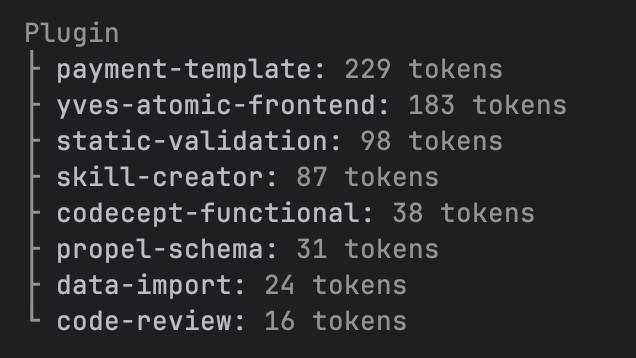
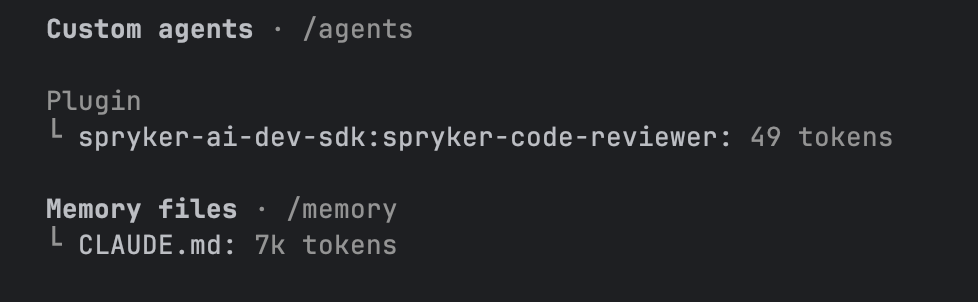
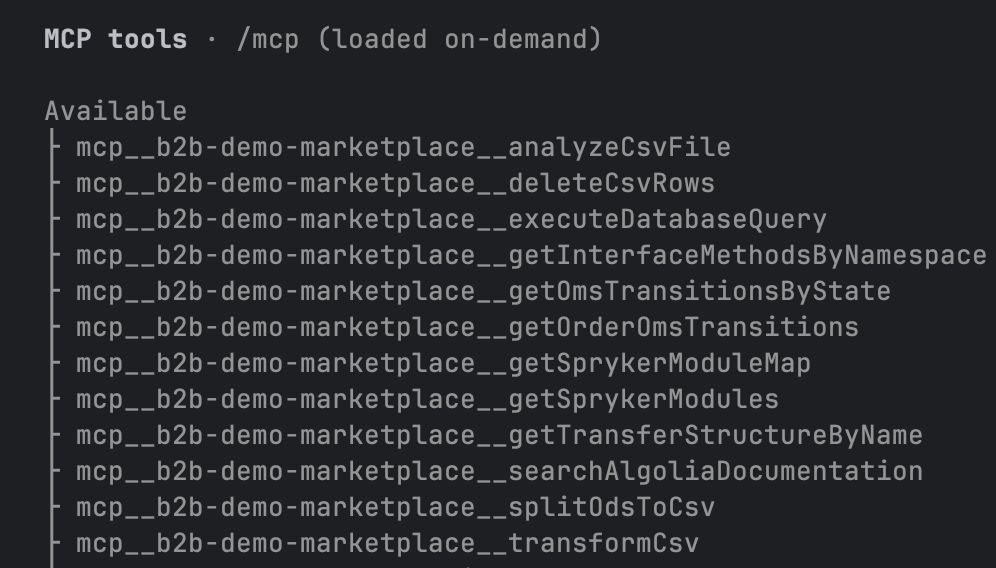
The /context output lists the plugin’s skills, the agents, the context file, and the MCP tools.
Plugin skills:
Agents and memory files:
MCP tools:
Coding rules without the setup
When you start a session in a Spryker project without the coding rules, the plugin offers once to install them. To install only the rules, without Docker and Composer, run /spryker-ai-dev-sdk:ai-dev-setup and ask for “only the rules”. For details, see How the rules reach your project.
Set up with GitHub Copilot
Plugin version 0.8.0 or later supports GitHub Copilot CLI. The same plugin gives GitHub Copilot the skills, the agents, and the coding rules — without the Composer package and the ai-dev:setup console command.
Step 1: Install the plugin
In your terminal, add the Spryker marketplace and install the plugin:
copilot plugin marketplace add spryker-sdk/ai-dev
copilot plugin install spryker-ai-dev-sdk@spryker-plugins-official
The plugin installs into GitHub Copilot itself, not into the project, so this step works on a fresh clone too.
Check that the plugin is installed and enabled:
copilot plugin list
The list shows spryker-ai-dev-sdk@spryker-plugins-official as enabled. Then start copilot in your project and type /spryker: the command list shows the Spryker skills, such as /spryker-ai-dev-sdk:ai-dev-setup.
To update the plugin later, run copilot plugin update spryker-ai-dev-sdk@spryker-plugins-official.
Step 2: Add your project’s context
At the Copilot prompt, run:
/spryker-ai-dev-sdk:ai-dev-setup
The skill detects that it runs in GitHub Copilot and writes the files that GitHub Copilot reads:
- The project context file:
.github/copilot-instructions.md. - The coding rules:
.github/instructions/<rule>.instructions.md, each scoped to its files withapplyTo. - The MCP server registration — see Register the MCP server.
The conditions are the same as in Claude Code: the Docker environment must run, and on a fresh clone you skip this step until the first boot. The plugin also offers the coding rules when a session starts, as described in Coding rules without the setup; for GitHub Copilot, the rules go to .github/instructions/.
Start a new Copilot session after the setup, so that it loads the new files.
GitHub Copilot registers the plugin’s agents with a slash as the separator, for example spryker-ai-dev-sdk/spryker-verifier. Claude Code uses a colon: spryker-ai-dev-sdk:spryker-verifier. Skills use the colon in both tools: /spryker-ai-dev-sdk:spryker-upgrade.
Permission requests
Claude Code asks for approval before it runs a command or changes a file, so expect prompts during setup and during the long workflows. How often it asks depends on the session’s permission mode — press Shift+Tab at the prompt to switch modes.
You can pre-approve the commands the SDK uses repeatedly, such as docker/sdk console and composer, and review the active rules with /permissions. For the modes, the rule syntax, and the settings files, see Configure permissions and Choose a permission mode in the Claude Code documentation.
Set up with another assistant
This path requires an installed project with the Docker environment running (docker/sdk up).
-
If
spryker-sdk/ai-devis not in your project’scomposer.jsonyet, install it:docker/sdk cli composer require spryker-sdk/ai-dev --dev console transfer:generate exitIf it is already there, update it to the latest version instead:
docker/sdk cli composer update spryker-sdk/ai-dev console transfer:generate exit -
Register the console commands in
src/Pyz/Zed/Console/ConsoleDependencyProvider.php. Skip this step if the file already registersMcpServerConsole. Theclass_exists()guards keep the project bootable on environments where the dev dependency is absent, such as production:use SprykerSdk\Zed\AiDev\Communication\Console\AiToolSetupConsole; use SprykerSdk\Zed\AiDev\Communication\Console\McpServerConsole; protected function getConsoleCommands(Container $container): array { ... if (class_exists(McpServerConsole::class)) { $commands[] = new McpServerConsole(); } if (class_exists(AiToolSetupConsole::class)) { $commands[] = new AiToolSetupConsole(); } ... } -
Generate the rules, context file, and skills with the
ai-dev:setupconsole command:docker/sdk console ai-dev:setupThe command detects your assistant, asks you to confirm or select a different one, and writes into that tool’s directories — see Generated files per AI tool. It is safe to re-run: it refreshes previously generated files from the latest upstream content.
Verify: in your terminal, from the project root, check that your assistant’s directory was created. For example, for Cursor:
ls .cursor/rules/For Windsurf, check
.windsurf/rules/instead. Generated files per AI tool lists the directory for each assistant. -
Register the MCP server in your assistant — see Register the MCP server.
Generated files per AI tool
For the selected tool, ai-dev:setup generates the following:
- Rules: Spryker’s coding conventions and architectural guidelines.
- Agents/context file: project-specific context for AI agents.
- Skills: reusable, task-specific AI skill files.
The command supports two output modes:
- Ready to use: files are generated directly in the tool-specific directories listed below.
- Example: files are generated in example directories — for example,
.claude/rules-example/instead of.claude/rules/. Rename the directories when you are ready to use them.
| AI tool | Rules directory | Agents/context file | Skills directory |
|---|---|---|---|
| Claude Code | .claude/rules/ |
CLAUDE.md |
.claude/skills/ |
| Windsurf | .windsurf/rules/ |
.windsurfrules |
.windsurf/skills/ |
| GitHub Copilot | .github/instructions/ |
.github/copilot-instructions.md |
.github/skills/ |
| Cursor | .cursor/rules/ |
AGENTS.md |
.cursor/skills/ |
| OpenCode | .opencode/rules/ |
AGENTS.md |
.agents/skills/ |
| Codex CLI | Not supported — see below | AGENTS.md |
.agents/skills/ |
Codex CLI does not have a native rules format. When you select it, the command offers to generate rules in another tool’s format instead and places them in that tool’s rules directory.
If you use Docker sync, the /.git* entry in .dockersyncignore also excludes the .github folder, which prevents Copilot-generated files from being available inside the container. To fix this, add the following line to .dockersyncignore after the /.git* entry:
!/.github
Register the MCP server
The MCP server runs inside your project’s Docker container through the ai-dev:mcp-server console command:
docker/sdk console ai-dev:mcp-server -q
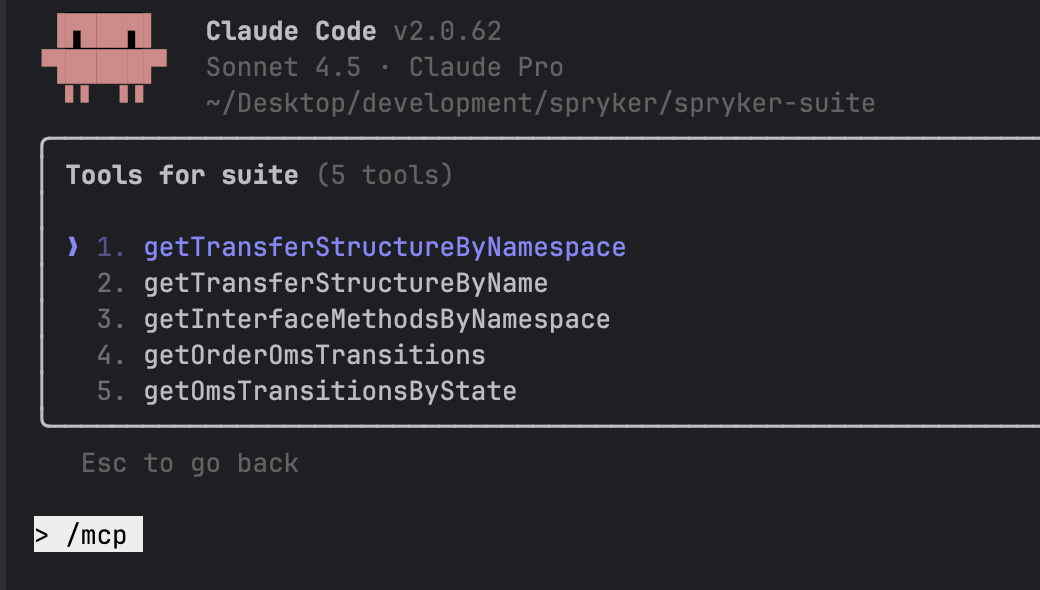
The -q flag (quiet mode) suppresses unnecessary output, which is important for the MCP stdio transport. For the tools the server exposes, see AI Dev MCP Server.
Register that command in your assistant, with the executable and the arguments as separate fields. The following sections show the most common assistants; adapt one of them for your tool.
Claude Code
If you set up your project with the ai-dev-setup skill, the MCP server is already registered — skip this section.
Otherwise, go to your Spryker project directory and run:
claude mcp add spryker-project "$(pwd)/docker/sdk" -- console ai-dev:mcp-server -q
This command:
- Adds the MCP server configuration to Claude Code
- Uses the current project directory path automatically
- Configures the server to run in quiet mode
Quote only the executable and keep the arguments after the -- separator. Passing everything as one quoted string stores the whole string as the executable path, and the server fails to start with Failed to connect — ENOENT: no such file or directory. If you registered it that way, remove the entry with claude mcp remove spryker-project and add it again as shown.
Claude Code now has access to Spryker-specific tools through the MCP server.
GitHub Copilot CLI
If you set up your project with the ai-dev-setup skill, the MCP server is already registered — skip this section.
Otherwise, go to your Spryker project directory and run:
copilot mcp add "$(basename "$(pwd)")" -- "$(pwd)/docker/sdk" console ai-dev:mcp-server -q
Project-scoped registration for the team
Claude Code and GitHub Copilot CLI both read an .mcp.json file at the project root. When you commit this file, every developer on the team gets the MCP server without a registration of their own:
{
  "mcpServers": {
    "spryker-project": {
      "type": "stdio",
      "command": "docker/sdk",
      "args": ["console", "ai-dev:mcp-server", "-q"]
    }
  }
}
The relative command works when the coding agent starts in the project root. If it does not, use the absolute path to docker/sdk. The ai-dev-setup skill offers to write this file. VS Code does not read .mcp.json: it reads .vscode/mcp.json, with the servers key instead of mcpServers.
Claude Desktop
-
Open Claude Desktop settings.
-
Go to the Developer section.
-
Add the following configuration to
claude_desktop_config.json:{ "mcpServers": { "spryker-project": { "command": "/Users/username/projects/spryker-project/docker/sdk", "args": [ "console", "ai-dev:mcp-server", "-q" ] } } } -
Restart Claude Desktop.
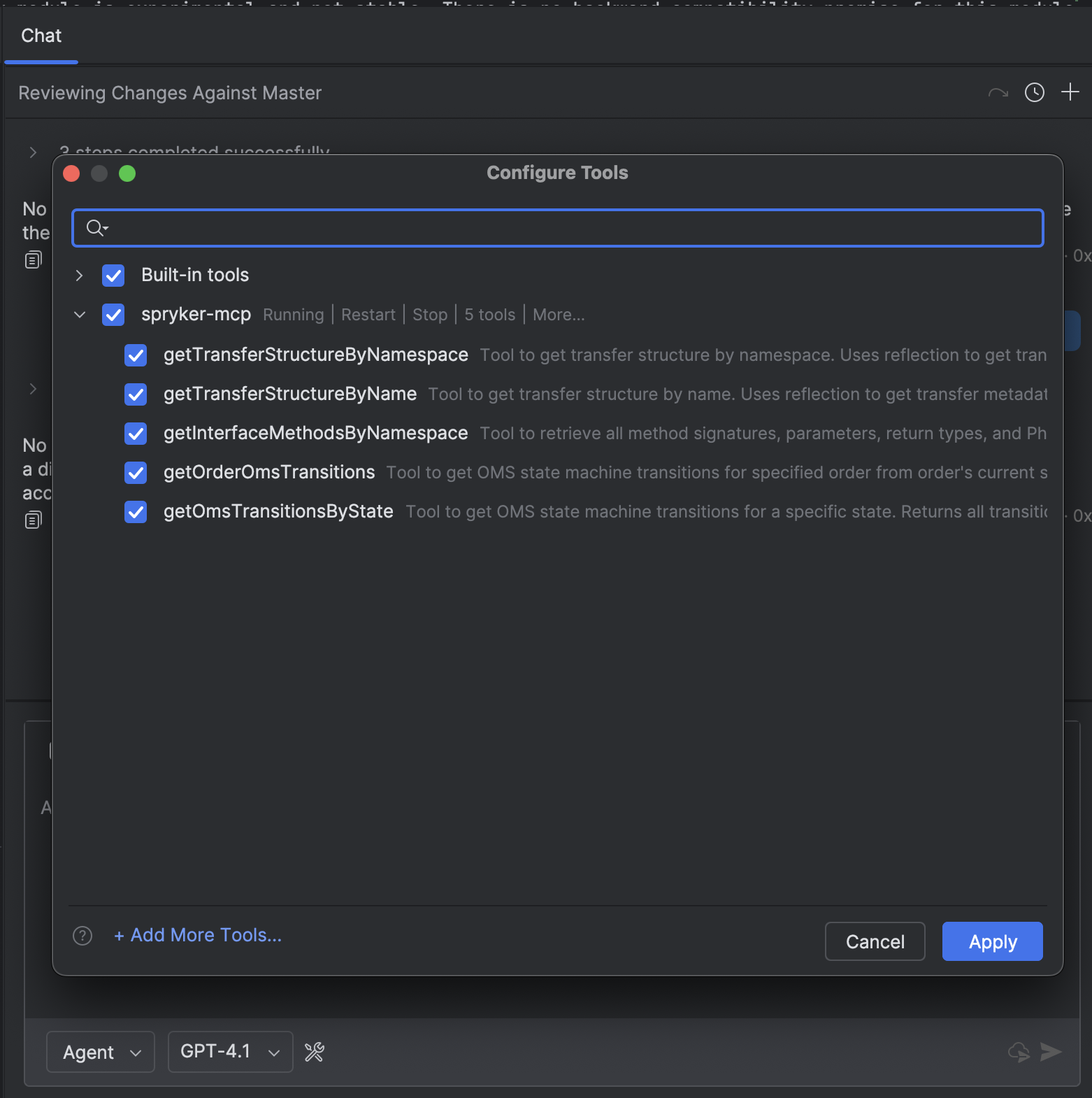
GitHub Copilot in PHPStorm
-
Open PHPStorm settings.
-
Go to Tools > GitHub Copilot > MCP Servers.
-
Add a new server configuration with the following JSON:
{ "servers": { "spryker-project": { "type": "stdio", "command": "/Users/username/projects/spryker-project/docker/sdk", "args": [ "console", "ai-dev:mcp-server", "-q" ] } }, "inputs": [] } -
Restart PHPStorm.
MCP support in GitHub Copilot for PHPStorm requires PHPStorm version 2024.3 or later. Check your IDE version and update if necessary.
Try it
You do not need to learn commands — describe what you want in your own words, and the assistant picks the matching skill. Some first prompts to try:
- “Write a product requirement document for a minimum order value per store” — produces a research-grounded spec before any code
- “Build this feature: …” — walks a requirement through implementation, tests, and review with the Customization Workflow
- “Fix this bug: customers can check out with an empty cart” — drives the Bugfix Workflow from reproduction to a validated fix
- “Review my staged changes against Spryker coding standards”
- “Turn this demoshop into our project” — on a fresh clone, starts the Project Starter Wizard
Where to go next
- Workflows, Skills, and Agents — everything the SDK ships and what each piece does
- Claude Code — the plugin in detail, slash commands, and optional enhancements
- Demo Preparation Wizard — prepare a customer demo from a briefing
- AI Dev MCP Server — the available MCP tools, extension points, and debugging
Thank you!
For submitting the form